Friday, August 11, 2023

Auto Uncheck checkBox If Corresponding Cell Task/Text Removed/Cleared

 VBA code for to-do checklist where if any task deleted corresponding checkbox will be uncheck by itself


Copy Below VBA code and paste under sheet:

Private Sub Worksheet_SelectionChange(ByVal Target As Range)
Dim rngTasks As Range
Dim rngChanged As Range
Dim Cell As Range
'Set the range for tasks in column C
Set rngTasks = Me.Range("C:C")
Set rngChanged = Intersect(Target, rngTasks)
'Check if any changes intersect with the tasks range
If Not Intersect(Target, rngTasks) Is Nothing Then
Application.EnableEvents = False 'Disable events to prevent re-triggering
For Each Cell In rngChanged
'If the task in column C is deleted, clear the corresponding text in column A
If Cell.Value = "" Then
Cell.Offset(0, -2).ClearContents 'Offset by -2 columns (Column A)
End If
Next Cell
Application.EnableEvents = True 'Re-enable events
End If
End Sub

Thursday, May 25, 2023

Excel Mind - VBA Code To Add Multiple Checkbox In Multiple Cells Excel

 VBA Code To Add Multiple Checkbox In Multiple Cells Excel 


Sub CreateCheckboxesWithCellReferences()
    Dim ws As Worksheet
    Dim rng As Range
    Dim cb As CheckBox
    Dim cell As Range
    
    ' VBA Code By Excelmind
    ' Set the worksheet where you want to add checkboxes
    Set ws = ThisWorkbook.Sheets("Sheet1")
    
    ' Select the range where you want to add checkboxes
    Set rng = Application.InputBox("Select a range", Type:=8)
    
    ' Loop through each cell in the selected range
    For Each cell In rng
        ' Create a checkbox in each cell
        Set cb = ws.CheckBoxes.Add(cell.Left, cell.Top, cell.Width, cell.Height)
        
        ' Set the linked cell for the checkbox
        cb.LinkedCell = cell.Address
        
        ' Adjust the checkbox appearance
        cb.Caption = ""
        cb.Value = xlOff
    Next cell
End Sub

Tuesday, March 28, 2023

Google Sheets Automation - Auto Email On Basis Of Cell Value

 Google Sheets Automation - Auto Email On Basis Of Cell Value


Copy below Code and paste under apps script (Change the email id to required)


function sendEmail() {
  var sheet = SpreadsheetApp.getActive().getSheetByName("Sheet1"); // Replace "Sheet1" with the name of your sheet
  var range = sheet.getRange("C:C"); // Replace "C:C" with the range of your column
  var values = range.getValues();
  var lastRow = sheet.getLastRow();
  var emailSent = sheet.getRange("E1:E").getValues(); // Assuming E2 is the starting cell of the emailSent column

  for (var i = 0; i < lastRow; i++) {
    if (values[i][0] === 0 && emailSent[i][0] !== "SENT") { // Change "0" to the value you want to monitor and adjust emailSent accordingly
      var emailAddress = "dummy@excelmind.com"; // Replace with the email address you want to send the notification to
      var subject = "Stock count went to zero";
      var message = "Stock went zero for: " + sheet.getRange("I2").getValue(); // Replace "D1" with the cell you want to include in the email body
      
      MailApp.sendEmail(emailAddress, subject, message);
      sheet.getRange("E" + (i + 1)).setValue("SENT"); // Assuming E2 is the starting cell of the emailSent column


      }
  }
}

Thursday, March 16, 2023

Stock Inventory Tracker In Excel - Auto Email

 Stock Inventory Tracker In Excel - Auto Email


Note: Save File under excel format and makesure outlook installed and correctly configured


Copy Code and paste under Inventory/Sheet Sheet

Private Sub Worksheet_Change(ByVal Target As Range)
    Dim myRange As Range
    Dim myCell As Range
    Dim mySubject As String
    Dim myMessage As String
    Dim myMail As Object
    
    Set myRange = Range("E:E")
    
    If Not Intersect(Target, myRange) Is Nothing Then
        For Each myCell In Intersect(Target, myRange)
            If myCell.Value = 0 Then
                Set myMail = CreateObject("Outlook.Application").CreateItem(0)
                mySubject = "Stock count has gone to zero"
                myMessage = "The stock count for " & Cells(1, 16).Value & " has gone to zero."
                With myMail
                    .To = Cells(2, 8).Value
                    .Subject = mySubject
                    .Body = myMessage
                    .Send
                End With
            End If
        Next myCell
    End If
End Sub


Thursday, December 22, 2022

Tuesday, December 13, 2022

Excel Mind - Auto Create & Rename Multiple Sheets With Just A Click

 Auto Create & Rename Multiple Sheets With Just A Click


Click here for sample File (Download and open in msexcel as it will not work in google sheets)

Copy Below Code and paste it under module:


Sub InsertMultipleSheets()

Dim x As String

Dim ShCnt As Integer

Dim myarray() As String

Dim i As Integer

Dim Lrow As Integer


x = InputBox("Enter number of sheets to insert.", "Enter Multiple Sheets")


If x = NullString Then


Exit Sub


End If


Sheets.Add After:=ActiveSheet, Count:=x


Sheets("Main").Select

Range("A1").Select


Lrow = Range("A1").End(xlDown).Row

ShCnt = ThisWorkbook.Sheets.Count

ReDim myarray(1 To Lrow)

For i = 1 To UBound(myarray)

myarray(i) = Range("A" & i).Value

Next i

For i = 1 To ShCnt

Sheets(i).Name = myarray(i)

Next i

MsgBox "Sheets created and renamed successfully"


End Sub


Saturday, November 26, 2022

Create Userform In Excel With & Without VBA


VBA Code for Submit Button:

Private Sub CommandButton1_Click()

Dim Lastrow As Integer

Lastrow = Sheets("VBA").UsedRange.SpecialCells(xlCellTypeLastCell).Row + 1

'Transfee data to VBA Sheet

Sheets("VBA").Cells(Lastrow, 1) = TextBox1.Text
Sheets("VBA").Cells(Lastrow, 2) = TextBox2.Text
Sheets("VBA").Cells(Lastrow, 3) = TextBox3.Text
Sheets("VBA").Cells(Lastrow, 4) = TextBox4.Text
Sheets("VBA").Cells(Lastrow, 5) = Now

'clear Data

Me.TextBox1.Value = ""
Me.TextBox2.Value = ""
Me.TextBox3.Value = ""
Me.TextBox4.Value = ""

End Sub

Private Sub UserForm_QueryClose(Cancel As Integer, CloseMode As Integer)

If CloseMode = vbFormControlMenu Then

Cancel = True
MsgBox "Please use the close button to close the form", vbOKOnly

End If

End Sub


VBA Code for Cancel Button:

Private Sub CommandButton2_Click()

Unload UserForm1

End Sub

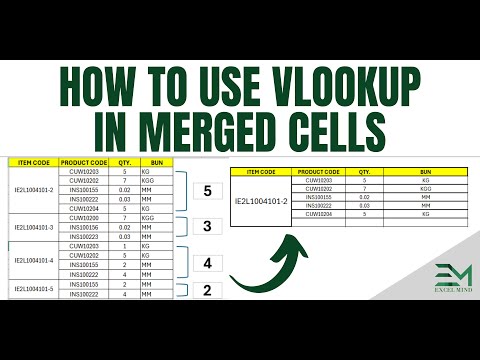
How To Use Vlookup In Merged Cells

  How To Use Vlookup In Merged Cells Click Here to download sample file for practice Note: Download the file and open with microsoft excel